Product behavior and external claims reviewed August 29, 2026. Review methodology.
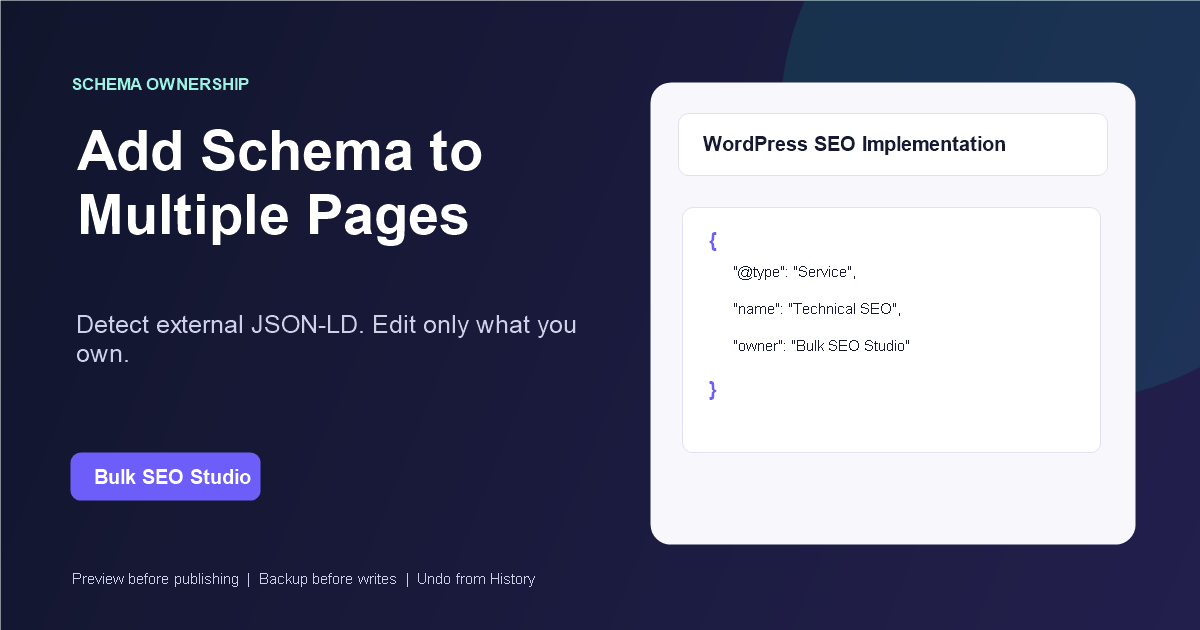
Yes. Bulk Schema lets Pro users scan or load selected WordPress URLs, detect JSON-LD already visible on each live page, add supported schema owned by Bulk SEO Studio, Preview the complete change set, and save approved blocks in chunks with backups and Undo.
Why bulk schema requires an ownership rule
Schema can be emitted by an SEO plugin, a theme, custom code, or another WordPress extension. Detecting a JSON-LD block does not mean a second tool can safely edit the system that stores it. Blindly copying or replacing external markup can create duplicate entities, conflicting properties, or a false impression that another plugin was updated.
Bulk SEO Studio separates detection from ownership. External schema remains visible for review, while only blocks carrying the Bulk SEO Studio ownership marker are editable.
Before adding schema across multiple URLs
- Define the page set and the schema type each page actually needs.
- Check whether another plugin already outputs the same entity type.
- Prepare complete and accurate property values.
- Use a staging site or a small initial batch when changing production structured data.
- Plan to validate representative live pages after saving.
Step-by-step bulk schema workflow
1. Load the intended WordPress pages
Scan the configured site scope or paste the exact URLs involved in the project. Filters help narrow pages by title, URL, status, and content type so unrelated pages stay outside the batch.
2. Detect schema already visible on the live page
Run detection before adding new blocks. The grid distinguishes external JSON-LD from schema owned by Bulk SEO Studio. External blocks are references, not editable imports.
3. Open the schema editor for each page
Review the detected types and add a supported schema block through guided fields. If the same type already exists, use the conflict workflow to decide whether a plugin-owned block should be replaced or added separately.
4. Preview the complete change set
Preview is the boundary between editing and writing. Review every affected page and JSON-LD block before approval. Exclude any uncertain field or page instead of accepting the full batch automatically.
5. Save in chunks and verify
Approved changes are saved in smaller requests. Backups and History records are created before supported writes. After saving, refresh schema detection and validate several live URLs with a structured-data testing tool.
What Bulk Schema does not overwrite
Schema from Rank Math, Yoast SEO, All in One SEO, SEOPress, Slim SEO, The SEO Framework, a theme, or custom code remains external unless it was originally created and marked by Bulk SEO Studio. Detection is not a claim of ownership.
Related resources
- Bulk Schema feature overview
- Schema ownership documentation
- Preview, backup, and Undo workflow
- CSV implementation workflows
Frequently asked questions
Can Bulk SEO Studio edit schema created by another SEO plugin?
No. External JSON-LD is detected for reference but remains view-only. Bulk SEO Studio edits only schema it owns.
Can schema changes be previewed?
Yes. Plugin-owned schema changes go through the complete Preview workflow before saving.
Can I undo a schema batch?
Yes. Supported plugin-owned schema writes participate in backup, History, and Undo.
Does detection guarantee the schema is valid?
No. Detection shows what is visible on the live page. The data still needs to be reviewed and validated for the page and entity.
Manage schema without pretending every block is editable
Detect what is already live, add supported plugin-owned schema, and review the complete batch before saving.
Explore Bulk Schema