
Product behavior and external claims reviewed August 29, 2026. Review methodology.
Bulk editing is usually more efficient for approved, repeated changes across many URLs. Manual editing remains appropriate for isolated pages, complex visual decisions, unsupported fields, and changes that require page-specific judgment. The right choice depends on scope, repeatability, review requirements, and recovery risk.
The practical difference
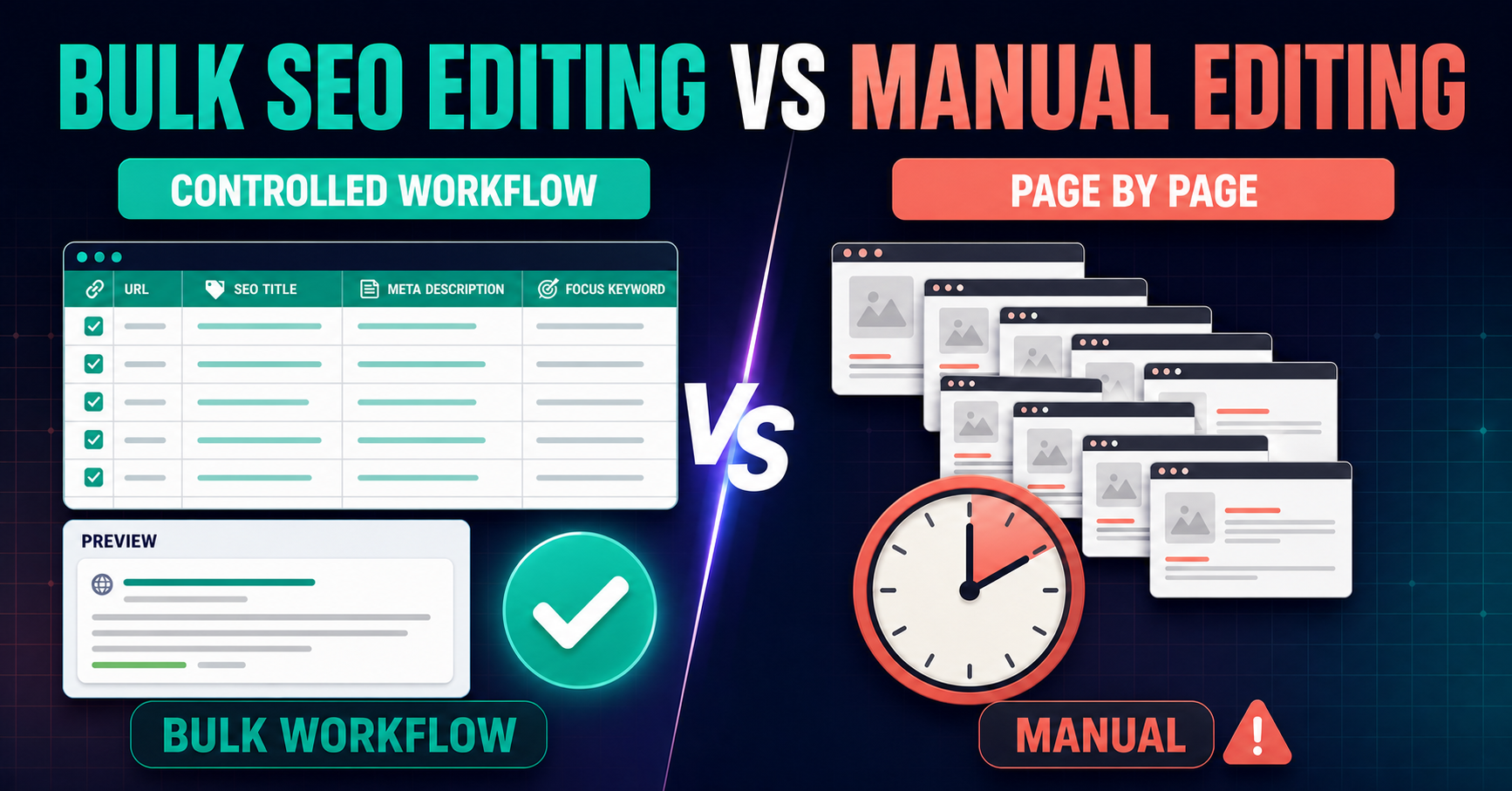
Manual editing combines navigation, field discovery, copying, saving, and verification on every page. A controlled bulk workflow separates those activities: load the URL set, stage proposed values together, review the change set, save approved fields, then verify representative output.
Side-by-side comparison
| Factor | Manual editing | Controlled bulk editing |
|---|---|---|
| Best scope | One or a few pages | Repeated fields across many URLs |
| Current-value review | Page by page | Central grid |
| Approval | Often informal | Field-level Preview |
| Consistency | Depends on repeated operator actions | Shared mapping and batch review |
| Saving | One page at a time | Chunked approved writes |
| Recovery | Recreate previous values manually | Stored backups and History for supported writes |
| Unsupported work | Flexible with expert judgment | Skipped or handled outside the workflow |
| Verification | Every page or informal sampling | Planned representative checks plus exceptions |
When manual editing is the better choice
- The change affects only one or two pages.
- The copy needs substantial page-specific rewriting.
- The field or widget is not supported by the bulk workflow.
- The edit requires visual layout decisions in the page builder.
- A template or global component owns the output.
- The task is exploratory and no approved replacement values exist.
When a bulk workflow becomes valuable
- An audit or spreadsheet contains approved values for many URLs.
- The same supported field must be updated consistently.
- A reviewer needs to compare current and proposed values before saving.
- The team needs backups, History, and page-level recovery.
- The implementation must be divided into manageable batches.
- The work spans compatible SEO metadata, supported headings, internal links, or plugin-owned schema.
A hybrid workflow is often strongest
Bulk editing does not need to replace every manual action. Use it for repeated supported changes and route exceptions to WordPress or Elementor for individual review. The skipped-item report becomes a practical exception queue rather than a reason to force uncertain changes.
1. Separate repeated work from exceptions
Group exact URL-to-field replacements in the bulk batch. Keep custom rewrites, template changes, and unsupported widgets in a manual queue.
2. Preview the bulk set
Check accidental blanks, wrong-page mappings, duplicated values, and stale current data before writing.
3. Verify a representative sample and every exception
Sample each builder, post type, SEO source, and change type. Review skipped and failed rows individually.
Related implementation resources
- Bulk SEO Editor
- Implement SEO audit recommendations
- Safe bulk SEO editing
- Pricing and batch capabilities
Frequently asked questions
Does bulk editing remove the need for human review?
No. Strategy, approval, exception handling, and live verification remain human responsibilities.
How many pages justify a bulk workflow?
There is no fixed threshold. Repetition, review complexity, and recovery needs matter as much as page count.
Should unsupported fields be forced into the batch?
No. Handle unsupported or uncertain changes manually or through the system that owns them.
Can manual and bulk editing be combined?
Yes. Bulk the repeated supported work and use manual editing for exceptions.
Does bulk editing guarantee search performance?
No. It improves implementation control and efficiency, not rankings or search-result display.
Stop repeating approved edits page by page
Centralize supported changes, inspect Preview, save with backups, and keep exceptions visible.
See the controlled workflow