
Product behavior and external claims reviewed August 29, 2026. Review methodology.
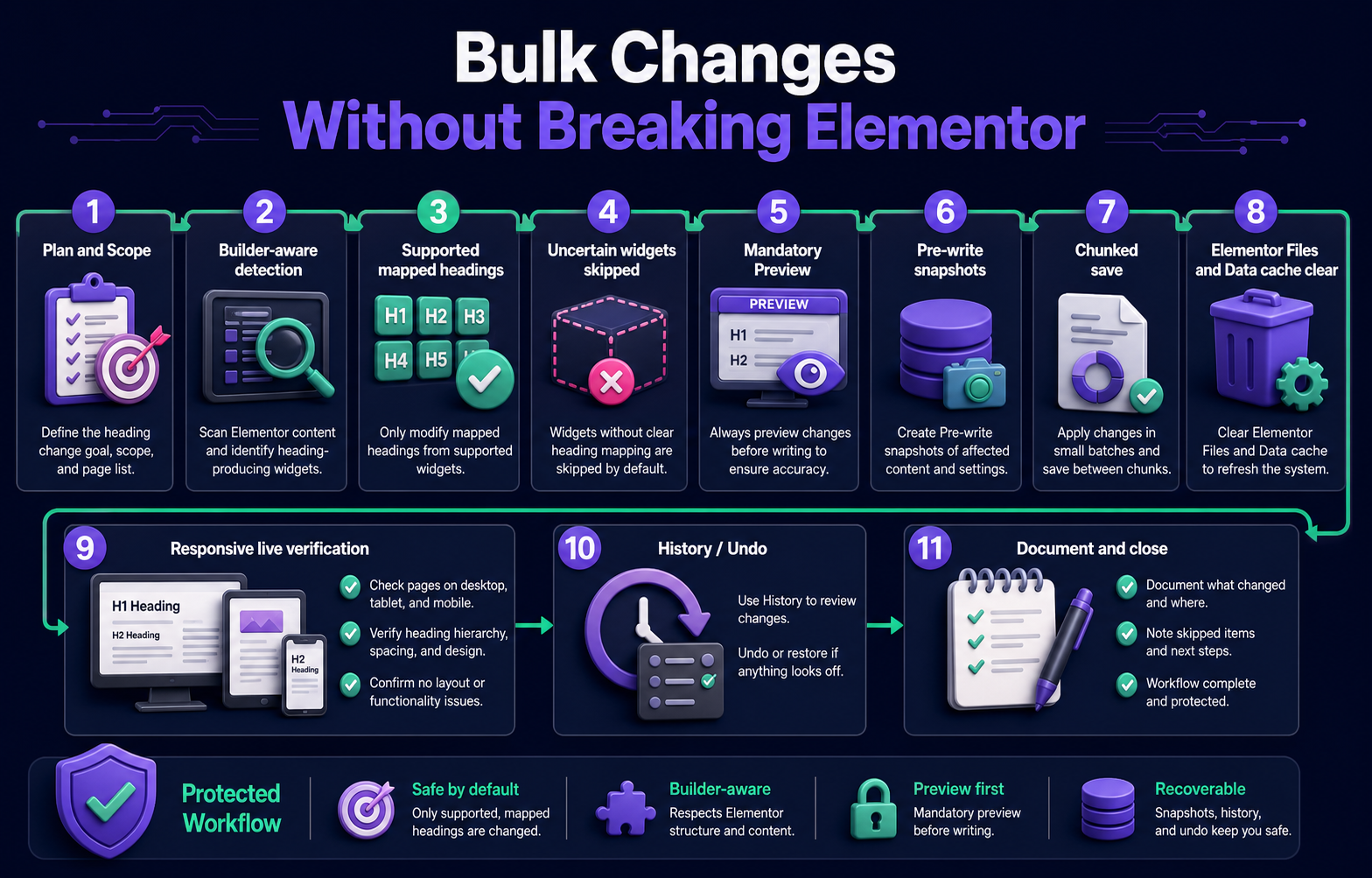
Use a builder-aware tool that reads structured Elementor data, modifies only documented heading-producing widgets it can map confidently, skips uncertain widgets, shows mandatory Preview, creates pre-write snapshots, saves in chunks, clears Elementor Files and Data plus site caches, and verifies representative pages on desktop, tablet, and mobile.
Why Elementor needs builder-aware handling
Elementor pages store structured widget and container data rather than only a flat HTML body. A broad search-and-replace can alter serialized or structured content incorrectly, miss the visible field, or update text without preserving the intended widget configuration. Safe bulk work must understand the supported storage path.
Bulk SEO Studio does not promise arbitrary editing of every Elementor widget. It targets documented mapped heading-producing widgets and skips structures it cannot identify confidently.
Safe workflow at a glance
| Control | What it protects | Required review |
|---|---|---|
| Builder-aware detection | Elementor structure and supported widget mapping | Confirm the correct visible heading |
| Uncertain-item skipping | Unknown widgets and ambiguous fields | Review the skip report |
| Mandatory Preview | Before-and-after values | Approve exact pages and fields |
| Pre-write snapshots | Supported original values | Confirm a recovery record exists |
| Chunked save | Operational stability | Verify the first representative batch |
| Cache clearing | Fresh generated CSS and public output | Elementor Files and Data, page cache, CDN |
| Responsive QA | Desktop, tablet, and mobile layout | Wrapping, spacing, hierarchy, interaction |
Step-by-step Elementor process
1. Define one change responsibility
Separate heading work from broader copy, layout, schema, or metadata changes. A narrow batch is easier to approve and recover.
2. Scan Elementor content
Load the target URLs and let the builder-aware scan identify supported heading-producing widgets. Check pages using different templates and nested structures.
3. Review supported and skipped items
A confident mapped field can enter the editing grid. Unsupported or uncertain widgets should remain unchanged and appear as exceptions for manual handling.
4. Edit the heading and tag deliberately
Review both visible text and heading level where supported. A keyword-driven text change should not accidentally flatten a logical H1, H2, and H3 hierarchy.
5. Inspect mandatory Preview
Compare every current and proposed value. Confirm that the selected URL, widget text, and heading level match the approved plan.
6. Save a small representative chunk
Confirmed supported writes create pre-write snapshots. Start with pages that represent the main Elementor templates before expanding the batch.
7. Clear generated files and caches
Use Elementor Tools to clear Files and Data when generated output remains stale. Then purge the relevant WordPress page cache, server cache, optimization cache, and CDN cache.
8. Verify responsive live pages
Check the heading at desktop, tablet, and mobile breakpoints. Review wrapping, spacing, alignment, hierarchy, nearby buttons, and any animation or interactive behavior.
9. Use History and Undo if needed
If a supported change produces an unexpected result, restore the saved values through History, clear caches again, and verify the live page.
Changes that need separate handling
- Arbitrary body-copy changes inside unsupported widgets.
- Third-party Elementor add-ons without documented field mapping.
- Global templates, dynamic tags, or theme-builder responsibilities outside the selected workflow.
- Layout, breakpoint, animation, typography, and style controls.
- Custom code or shortcode output rendered by another system.
- A redesign that requires visual editing rather than field replacement.
Related resources
- Bulk edit Elementor headings
- Bulk Headings feature
- Backup and Undo
- Cache troubleshooting
- Heading and Elementor guide hub
Frequently asked questions
Can Bulk SEO Studio edit every Elementor widget?
No. It modifies documented mapped heading-producing widgets and skips uncertain or unsupported structures.
Are pre-write snapshots a full-site backup?
No. They preserve supported values affected by the confirmed write. Keep normal hosting or database backups too.
Why does the old heading still appear after saving?
Elementor generated files, WordPress caching, server caching, optimization plugins, or a CDN may still serve stale output. Clear the relevant layers.
What should I test on mobile?
Check text wrapping, spacing, hierarchy, alignment, adjacent controls, and whether the changed heading affects the layout.
Can I undo supported Elementor heading changes?
Yes. Supported writes recorded in History can be restored, followed by cache clearing and live verification.
Use a builder-aware workflow for Elementor headings
Change only supported mapped fields, Preview every page, keep snapshots, and verify responsive output.
Explore Bulk Headings