
Product behavior and external claims reviewed August 29, 2026. Review methodology.
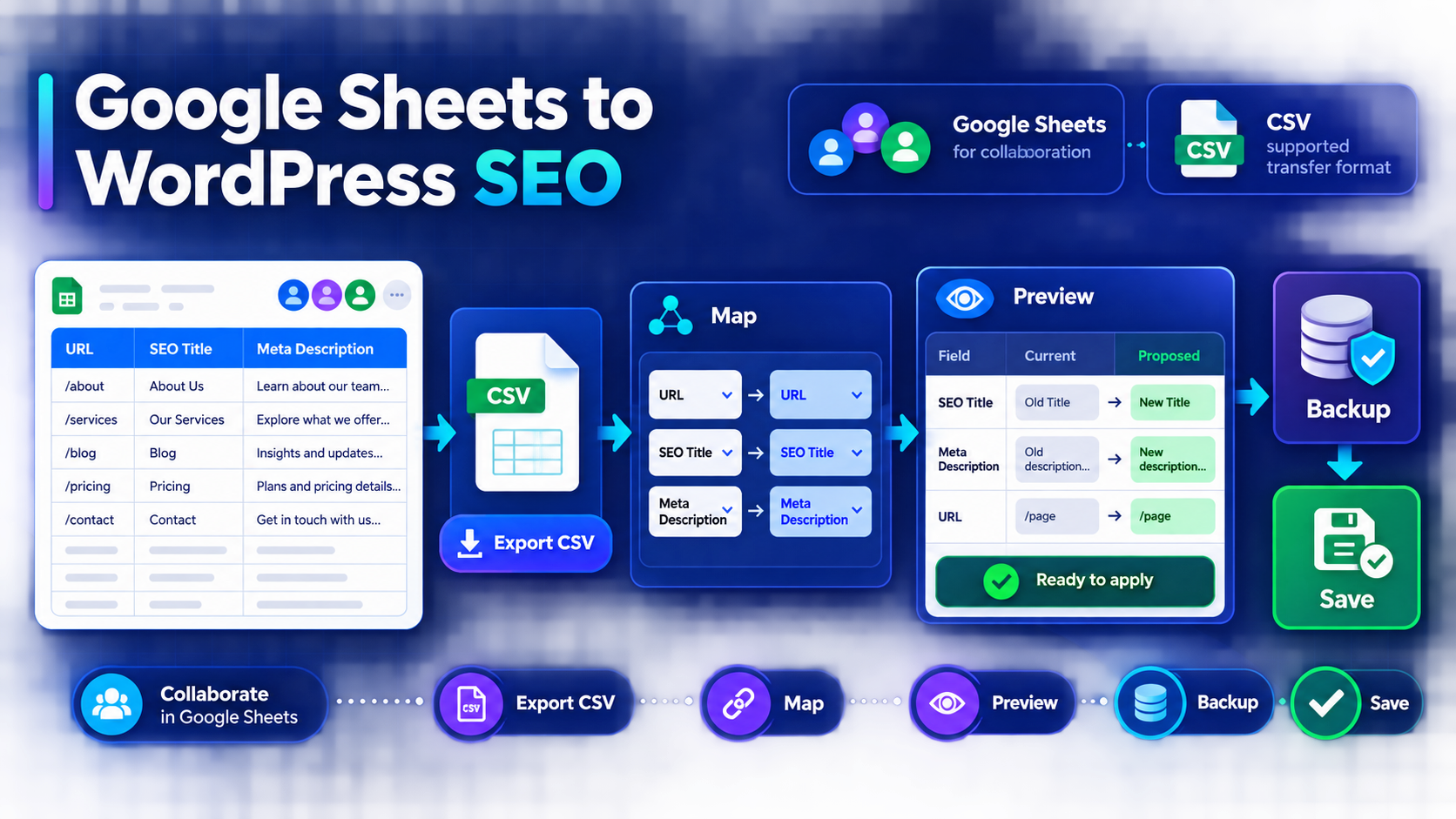
Yes, you can use Google Sheets to prepare WordPress SEO changes. Bulk SEO Studio does not connect to a live Google Sheet or parse native spreadsheet files. The supported workflow is to collaborate in Google Sheets, export the approved rows as UTF-8 CSV, map supported columns in Pro, review the complete proposed change set in Preview, and save only approved fields with backups.
This separation is useful. Google Sheets remains the drafting and approval workspace. WordPress remains the source of live page identity. CSV becomes a controlled transfer format rather than automatic publishing authority.
Important: Native XLSX files are not supported, and an imported CSV never saves automatically. URL matching, column mapping, mandatory Preview, and confirmation remain part of the workflow.
A practical agency example
Suppose an agency receives approval for 80 title and description changes. The strategist keeps one Google Sheet with URL, Current SEO Title, Approved SEO Title, Current Meta Description, Approved Meta Description, reviewer, and approval status. Only approved rows and supported destination columns are copied into the import tab. That tab is exported as CSV and mapped into Bulk Editor.
This keeps stakeholder notes, formulas, alternatives, and rejected drafts out of the implementation file. It also gives the implementer a stable URL key for every proposed value.
Recommended Google Sheets structure
| Column | Purpose | Import? |
|---|---|---|
| URL | Exact live WordPress URL used for matching | Yes |
| SEO Title | Final approved title value | When required |
| Meta Description | Final approved description | When required |
| Reviewer | Internal ownership and approval trail | No |
| Approval Status | Controls which rows reach the import tab | No |
| Notes | Editorial context and unresolved questions | No |
Bulk SEO Studio Pro can import URLs with supported combinations of page title, publishing status, SEO title, meta description, heading text, and heading tag columns. Heading labels such as H1-1 and H2-1 refer to supported headings in visual order. Missing or uncertain heading matches are skipped rather than guessed.
Step-by-step workflow
1. Separate drafting from implementation
Keep research, formulas, comments, alternate copy, and stakeholder feedback in working tabs. Create a dedicated import tab containing only approved rows and supported fields.
2. Normalize the URL column
Use the exact live WordPress URLs. Resolve redirects, staging domains, duplicated rows, tracking parameters, and inconsistent trailing slashes before export. URL accuracy matters more than row order.
3. Freeze formula results as approved text
If a title or description is produced by a formula, copy the final reviewed output into the import tab as plain text. Do not expect WordPress to evaluate spreadsheet formulas.
4. Export the import tab as CSV
In Google Sheets, download the selected sheet as comma-separated values. Keep the approved Google Sheet unchanged as the team record and retain a copy of the exact CSV sent for implementation.
5. Upload and map supported columns
Upload the CSV in Bulk Editor Pro, map URL and only the approved destination fields, and inspect unmatched rows. Mapping happens before imported values enter the editable grid.
6. Review the grid, then open Preview
Check accidental blanks, duplicated copy, incorrect page matches, unsupported columns, and values assigned to the wrong URL. Preview then shows current and proposed values for the complete change set with per-field checkboxes.
7. Save approved fields and verify
Confirmed writes are processed in chunks, with a backup created before each supported post write. Review History, inspect representative live pages and clear relevant Elementor, page, server, or CDN caches when output does not appear immediately.
What Bulk SEO Studio handles and what remains under your control
Bulk SEO Studio handles
- Loading or matching supported WordPress URLs
- Mapping supported CSV headers
- Staging imported values in the grid
- Complete before-and-after Preview
- Per-field approval
- Chunked saving with backups
- History and supported Undo
Your team controls
- SEO strategy and keyword research
- The final approved title and description copy
- Which rows enter the import tab
- Whether a blank value is intentional
- Review and field approval
- Live-page verification
- External cache clearing where required
Common Google Sheets handoff failures
- Exporting the wrong tab with comments or drafts
- Using staging or redirected URLs
- Leaving multiple alternatives inside one cell
- Approving a blank cell unintentionally
- Uploading XLSX instead of CSV
- Assuming import bypasses Preview
- Treating character thresholds as search-display guarantees
- Failing to preserve the final approved spreadsheet and exported CSV
Related implementation resources
- CSV, Excel, and Google Sheets SEO workflows
- Import SEO metadata from CSV
- Export WordPress SEO metadata
- CSV import and export documentation
- Spreadsheet import and export feature
Frequently asked questions
Does Bulk SEO Studio connect directly to Google Sheets?
No. Use Google Sheets for collaboration, then export approved data as CSV for supported Pro import.
Can I upload an XLSX file exported from Excel?
No. Native XLSX files are not parsed. Export the intended sheet as CSV.
Does CSV import save values immediately?
No. Imported values are staged, reviewed in the grid, and passed through mandatory Preview before confirmation.
What identifies the WordPress page?
The URL column maps each row to a real WordPress post or page. Uncertain matches should be corrected or skipped rather than guessed.
Can I undo an approved import batch?
Supported writes create backups and appear in History, where one page, selected pages, or a complete supported batch can be restored.