
Product behavior and external claims reviewed August 29, 2026. Review methodology.
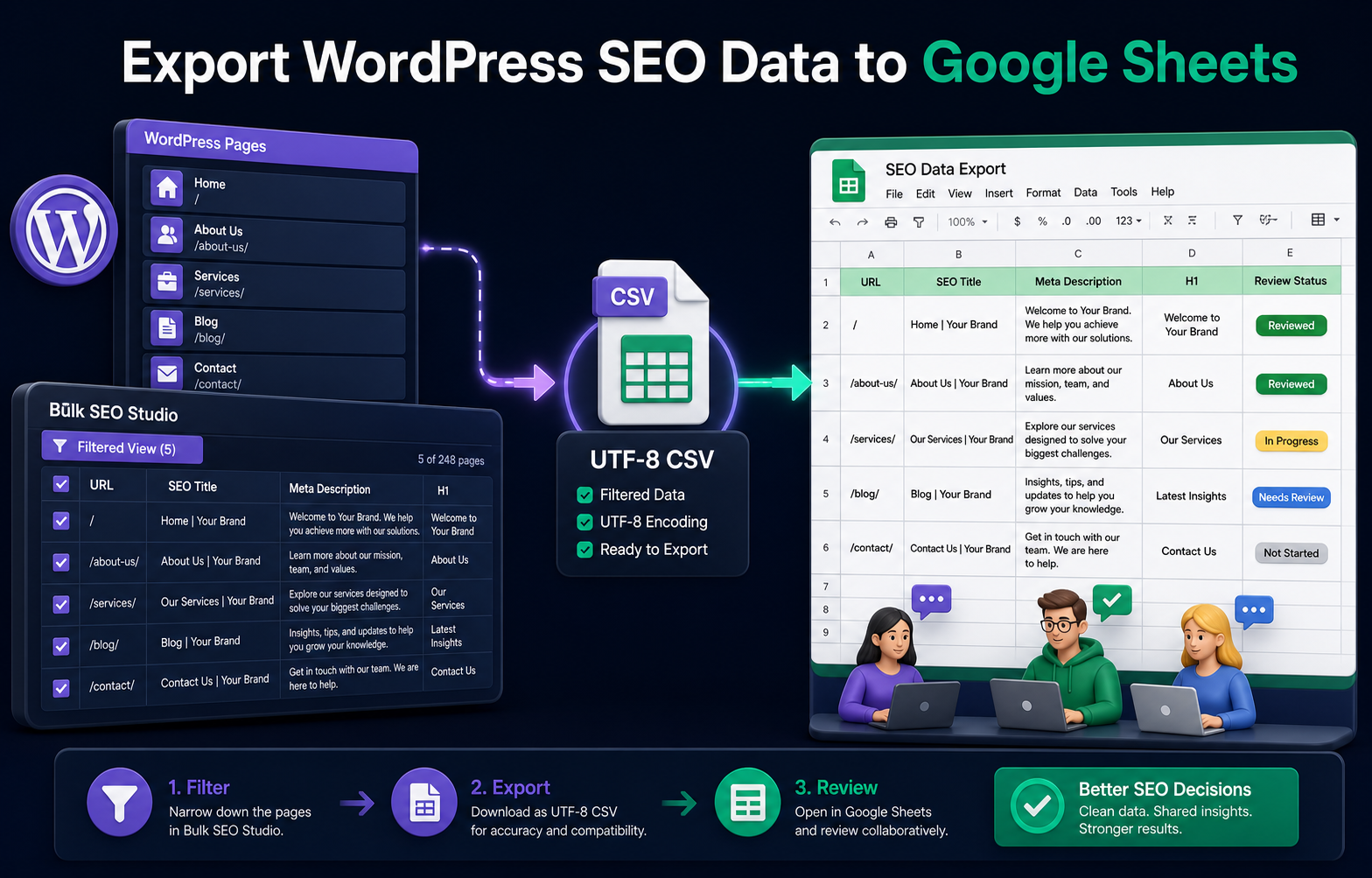
Yes. Scan the required WordPress content in Bulk SEO Studio, filter the rows and fields, export the current grid as a UTF-8 CSV, then import that CSV into Google Sheets. This is a file-based workflow, not a live Google Sheets sync. Spreadsheet values beginning like formulas are protected during export.
How to export WordPress SEO data as CSV
Scan the required WordPress URLs, apply post type, status, builder, title, URL, or slug filters, then export the current Bulk Editor dataset as a protected UTF-8 CSV. Open that file in Google Sheets for review. If approved values need to return to WordPress, export the final worksheet as CSV and map only documented supported columns in Pro.
| CSV field | Why it matters | Return workflow |
|---|---|---|
| URL and post ID | Preserves row identity and matching evidence | Use the URL to match the WordPress record |
| Post type, status, builder | Explains scope and storage context | Map only supported writable fields |
| Page and SEO titles | Separates the WordPress title from SEO metadata | Preview approved replacements before saving |
| Meta description | Supports review for missing, duplicate, short, or long values | Treat an empty proposed value deliberately |
| H1, H2-1, H2-2 | Provides a practical heading snapshot | Uncertain heading matches are skipped rather than guessed |
See the WordPress SEO CSV import and export feature for supported fields and product limits, or review how the metadata workflow manages SEO data in bulk.
What the export contains
The Bulk Editor export reflects the rows and supported fields in the current scan. Depending on the selected columns and integrations, the working file can include URLs, titles, meta descriptions, headings through H2-2, post information, and other supported values. Export only what the review team needs.
| Stage | Purpose | Important control |
|---|---|---|
| Scan WordPress | Load current supported values | Use filters or a defined URL list |
| Export CSV | Create a portable review file | UTF-8 encoding and formula-injection protection |
| Open in Sheets | Review, assign, and approve | Preserve the URL column and exact values |
| Return approved data | Prepare implementation | Export the final worksheet as CSV |
| Preview in WordPress | Compare proposed and current values | Approve exact fields before writing |
Step-by-step workflow
1. Define the review scope
Choose the post types, statuses, filters, or exact URLs required for the project. A smaller, intentional export is easier to review than a site-wide sheet with unrelated rows.
2. Scan current values
Load the latest WordPress values before exporting. This reduces the risk of starting from a stale spreadsheet while editors are still changing pages.
3. Export the filtered grid
Export the current data as UTF-8 CSV. Bulk SEO Studio protects cells that could otherwise be interpreted as spreadsheet formulas. Keep that protection in place when the file is opened and shared.
4. Import the file into Google Sheets
In Google Sheets, import the CSV into a new spreadsheet. Confirm that URLs, punctuation, accented characters, and line breaks display correctly. Do not use automatic transformations that alter URLs or approved metadata.
5. Separate current and proposed values
Preserve source columns and add clearly named proposed-value, owner, approval-status, and notes columns. This creates an audit trail and prevents reviewers from mistaking a suggestion for a live value.
6. Resolve conflicts before implementation
Re-scan WordPress if the review cycle was long. Compare the latest current values with the approved sheet and investigate rows changed by another editor.
7. Export the approved worksheet as CSV
Bulk SEO Studio does not parse a native XLSX workbook. Export only the final implementation worksheet as UTF-8 CSV and map supported destination fields deliberately.
8. Preview, save, and verify
Imported values remain proposals until mandatory Preview and confirmation. Start with a representative batch, verify public output, then continue with the remaining approved rows.
Spreadsheet controls that prevent errors
- Keep one canonical WordPress URL per row.
- Lock or protect source-value columns in Google Sheets.
- Use a controlled status such as Draft, Review, Approved, or Implemented.
- Do not map strategy notes or scoring columns to WordPress fields.
- Treat blank replacement cells as intentional only after review.
- Remove duplicate URL rows before import.
- Keep a dated copy of the approved implementation file.
Limits to understand
This workflow does not provide continuous two-way synchronization with Google Sheets. The spreadsheet is an approval and handoff layer. Only documented supported fields can be mapped back to WordPress, and uploading a file does not bypass Preview or write automatically.
Related resources
- Export WordPress SEO metadata
- Google Sheets to WordPress SEO workflow
- Spreadsheet import and export
- CSV documentation
- CSV and spreadsheet guide hub
Frequently asked questions
Does Bulk SEO Studio connect directly to Google Sheets?
No. Export a UTF-8 CSV, import it into Google Sheets, then export the approved worksheet as CSV for a controlled return workflow.
Can formulas run when I open the export?
Exported spreadsheet-like values receive formula-injection protection to reduce this risk. Keep the protected values intact.
Can I export headings?
The Bulk Editor export supports heading columns through H2-2 where those fields are available in the scan.
Can I re-import every spreadsheet column?
No. Map only documented supported destination fields. Notes and workflow columns should remain unmapped.
Does importing a CSV immediately change WordPress?
No. Imported values remain proposals until mandatory Preview and confirmation.
Move approved spreadsheet work into WordPress safely
Export current values, control the review process, map supported fields, and inspect every proposed change before saving.
Explore spreadsheet workflows